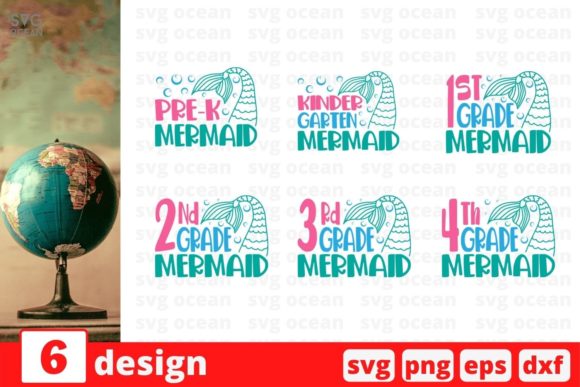
Back to School 1 SVG Bundle: What to Know Before You Download and Use It
If you create classroom decor, homeschool materials, or teacher gifts, the Back to School 1 SVG Bundle probably caught your attention. It promises a set of ready-to-use cut files for everything from bulletin board lettering to pencil box labels. But a bundle like this is only as good as how you use it, and many people make avoidable mistakes that waste time, money, or creative potential. Whether you are a Cricut enthusiast, a Silhouette user, or a small business owner selling custom school gear, understanding the details of SVG bundles will save you frustration and help you get better results from the start.
What the Back to School 1 SVG Bundle Actually Includes
Before diving into project ideas, take a moment to look at what comes inside the zipped folder. The Back to School 1 SVG Bundle Download includes SVG, DXF, PNG, and EPS formats, all packaged together. That might sound like overkill, but each format serves a different purpose, and knowing which one to use for your specific software or machine is the difference between a smooth cut and a file that simply will not open.
The SVG format works directly with Cricut Design Space and Silhouette Designer Edition. It also works with Make the Cut (MTC), Sure Cuts A Lot (SCAL), and Brother Scan and Cut Canvas software. If you own any of these programs, SVG is your primary choice. It supports layers, scales cleanly, and preserves paths, which means you get crisp lines and no pixelation when resizing.
A common misunderstanding is assuming SVG works in every version of Silhouette software. It does not. Silhouette Basic Edition, for example, relies on DXF files. That is why the bundle includes DXF. EPS files are for vector editing in programs like CorelDraw, Inkscape, or Adobe Illustrator. And PNG is a high-resolution photo file with a transparent background at 300 DPI, ideal for previews, mockups, or print-then-cut projects where you want a clean image without white boxes around the design.
The Mistake of Ignoring Format Compatibility
One of the most frequent errors people make is downloading an SVG bundle and trying to force one format into a program that does not support it. For example, opening an EPS file directly in Silhouette Basic Edition usually results in an error or a blank screen. The result is frustration and the assumption that the bundle is defective. It is not. You simply chose the wrong file for your software.
Check your program before you unzip the folder. If you use Cricut Design Space, SVG is your go-to. If you use Silhouette Basic Edition, use DXF. If you edit vectors in Illustrator or Inkscape, EPS gives you the most flexibility. If you are creating print-on-demand products or digital mockups, PNG with a transparent background is often the best choice because it saves you the step of removing a background yourself.
Take five minutes to match the format to your workflow. That small habit prevents wasted time and ensures your design loads correctly the first time.
Overlooking the Zipped Folder
Another detail that trips up beginners is the zipped folder itself. The Back to School 1 SVG Bundle Download includes all formats inside a single compressed folder. If you try to open files directly from the zip without extracting them, some programs will not recognize the files or will show them as corrupted. Always extract the folder to a location on your computer or cloud drive before opening any of the files.
If you are unsure how to unzip a folder on your device, a quick search for your operating system will walk you through it. On Windows, right-click and choose Extract All. On Mac, double-click the zip file. Once extracted, you will see separate folders or files for each format. Keep them organized so you can find the right file later without digging through a cluttered downloads folder.
Misjudging Resolution and Transparency
PNG files in this bundle come at 300 DPI with a transparent background. That is excellent for most print projects, but only if you use the PNG correctly. A 300 DPI resolution means the image is sharp and clear when printed at its original size. If you enlarge a PNG significantly, you may notice pixelation because it is a raster format, not a vector. Vectors like SVG and EPS scale infinitely without losing quality.
So when should you use the PNG? Use it when you need a quick preview, a digital mockup for an online listing, or a print-then-cut project where the design is flat and you want the background to disappear without manual editing. For vinyl cuts, heat transfer, or any project where the machine will trace a path, stick with SVG or DXF. The PNG will not give you a cut line the same way a vector file will, and trying to use it for cutting often leads to jagged edges or incomplete designs.
Choosing the Wrong Bundle for Your Project
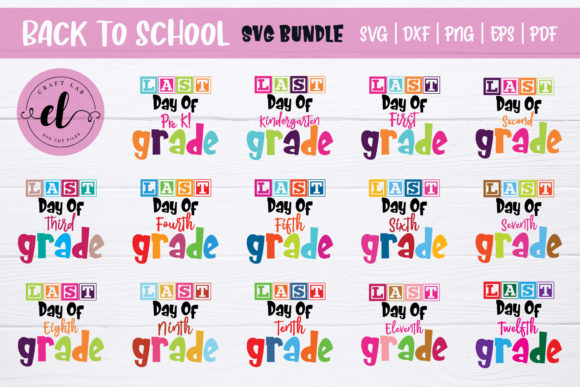
Not all back to school bundles are created equal, and the Back to School 1 SVG Bundle is designed around a specific style or theme. Before purchasing, look at the preview images closely. Are the designs simple and bold, or intricate with fine details? If you plan to cut small labels or pencil toppers, simpler designs work better because thin lines can tear or lift during weeding. Intricate designs are beautiful on larger projects like tote bags or classroom banners, but they require patience and a steady hand when weeding small pieces.
Also consider the theme. Some bundles focus on school supplies, while others emphasize phrases or characters. Make sure the bundle matches the tone you want. A set of playful cartoon apples and pencils works perfectly for a kindergarten classroom but might feel too casual for high school or college prep materials. Think about who will see the finished project and whether the style fits that audience.
Forgetting to Test First
After you unzip the files and load one into your software, test it on a small piece of material before committing to a large batch. This is especially important if you are using the Back to School 1 SVG Bundle for commercial purposes. A test cut reveals whether the paths are clean, whether the design fits your material size, and whether your machine settings are correct.
Test cuts also help you catch issues like mirrored text, reversed elements, or unexpected scaling. It is much easier to adjust one test piece than to waste an entire sheet of adhesive vinyl or heat transfer material. This step alone can save you significant cost and frustration, especially if you are creating multiple items for a classroom or a customer order.
Blindly Trusting File Names Without Previewing
File names in the bundle usually describe the design, but they do not always tell you the exact orientation or size. Open the SVG or EPS file in your software and preview it before cutting. What looks like an apple on a small thumbnail might actually be an apple with a stem that extends beyond your mat width. You might also find that the design includes elements you do not want, or that layers are grouped differently than expected.
Spend a couple of minutes in the design space arranging, resizing, or ungrouping as needed. This is also the time to change colors for layering or to duplicate elements for a larger project. Going straight from download to cut without this review step is one of the most common oversights, and it often leads to wasted material or a finished product that looks different from what you envisioned.
Understanding Licensing for Commercial Use
If you are a small business owner or a teacher creating items to sell at a school fundraiser, pay attention to the license that comes with the Back to School 1 SVG Bundle. Most individual SVG bundles allow personal use and sometimes limited commercial use, but the terms vary. Some require attribution, some limit the number of physical products you can sell, and some restrict digital resale entirely.
Read the license information included in the download folder or on the product page before you use the files for profit. Using a design outside the allowed scope can create legal problems even if the use is unintentional. If the license is unclear, contact the seller directly. A reliable creator will provide clear terms so you can use their designs with confidence.
Overlooking Updates and Bonus Files
Some SVG bundles receive updates over time, such as additional formats, new designs, or improved file organization. Check whether the Back to School 1 SVG Bundle Download you received includes any extras or if the seller offers updates to previous purchasers. This is rare but worth knowing because it can give you access to more value without paying again.
Similarly, confirm that the folder contains all four formats you expect. If only one or two formats are present, you may have downloaded a different version. Keeping your purchase confirmation and download link accessible helps you verify the contents and request support if something is missing.
Practical Advice for Getting the Most Out of the Bundle
Start by organizing your downloaded files into folders by format. For example, keep all SVG files in one folder, all DXF in another, and so on. Label them with the bundle name and date so you can find them later when you need a specific design for a last-minute project. This is especially helpful for teachers and small business owners who work with multiple seasonal bundles throughout the year.
When you open a file for the first time, note any default sizes. Some SVG files open at a standard size like 6 inches, while others open at the exact dimensions the designer used. Adjust the size to fit your project before cutting. If you are making multiple items that need to match, such as a set of desk nameplates, use the same scaling for all of them to keep the look consistent.
For layered projects, use the SVG format to take advantage of color separation. Most SVG files from the Back to School 1 SVG Bundle are designed with separate layers for each color. This makes it easier to cut each color on its own mat and assemble the final design without manually tracing or recreating elements.
If you are new to using SVG files with Cricut Design Space, remember that you can upload SVG files directly without any conversion. Once uploaded, you can resize, rotate, and arrange the design freely. For Silhouette Designer Edition, the process is similar. If you use Silhouette Basic Edition and need DXF files, remember that DXF imports as a single shape rather than layers, so you may need to adjust your workflow accordingly.
A Final Word on Choosing the Right Bundle
The Back to School 1 SVG Bundle is a practical tool for anyone creating school-related projects, but its value depends on how well you understand the files and your equipment. Take the time to match formats to software, test before cutting, and preview each design. By avoiding the common pitfalls of format confusion, overlooked licensing, and rushed cuts, you will save materials, reduce errors, and produce projects that look exactly as you imagined.
Whether you are making gifts for a teacher, decorating a classroom, or launching a small product line, the right preparation turns a simple download into a reliable creative resource. Choose your bundle with attention to detail, and use it with the same care. Your projects will be better for it, and you will spend more time enjoying the creative process and less time troubleshooting problems that could have been avoided.